Email help
Set up email on an iPhone
Sync your mail with the iPhone Mail app using Microsoft Exchange.
Thanks for choosing Aduron to host your new email address. Here is how to set up your iPhone to sync with our mail service. If you have not changed your password yet, please change it first.
-
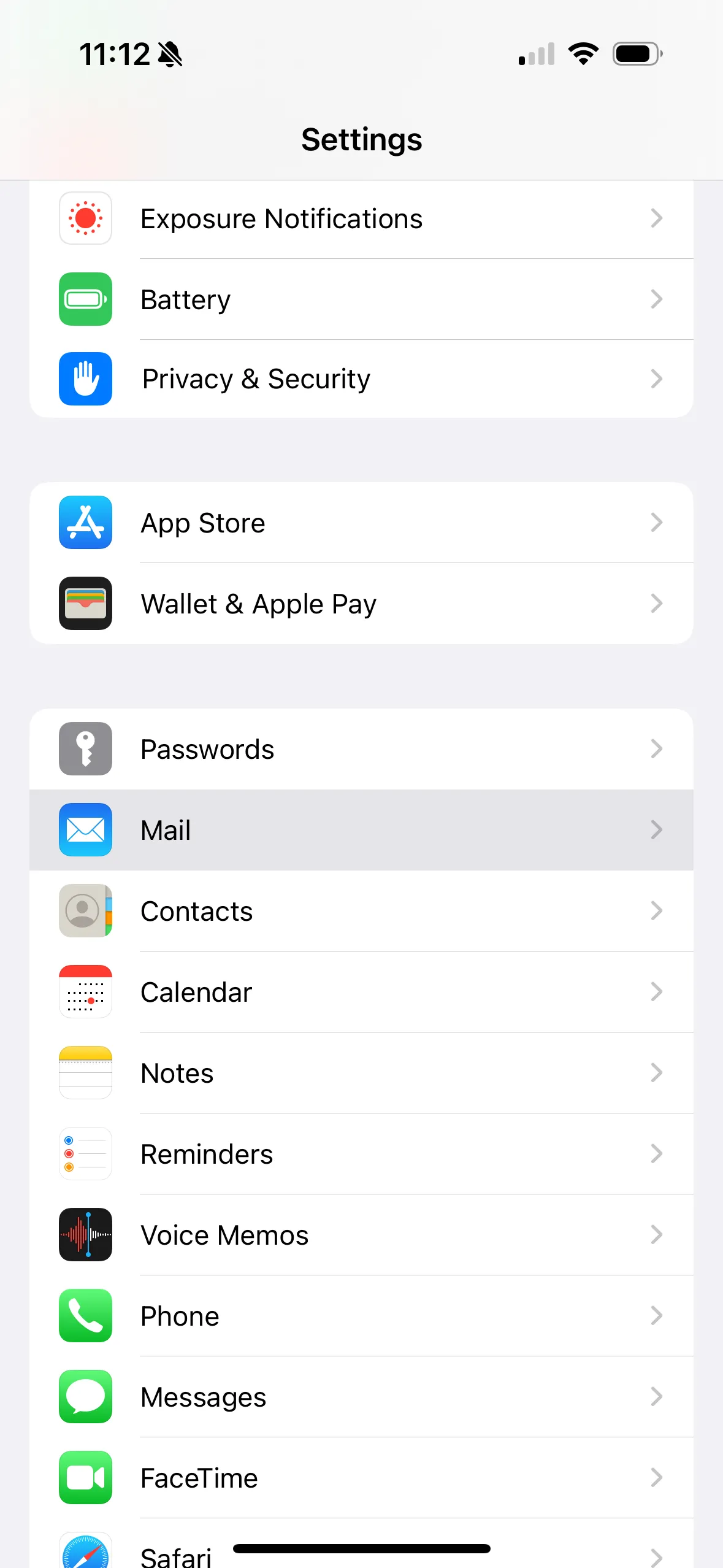
Open the Settings app on your iPhone.
-
Tap Mail.
-
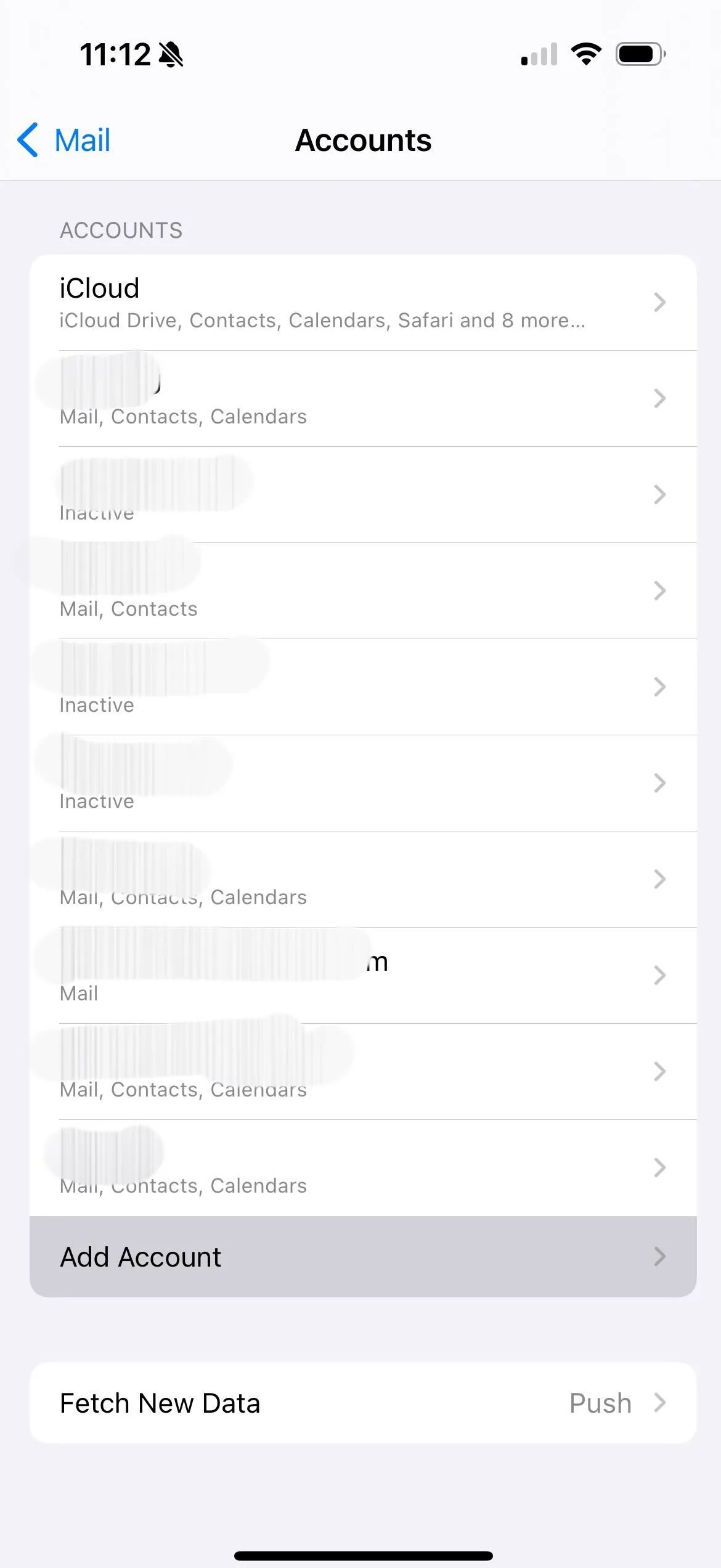
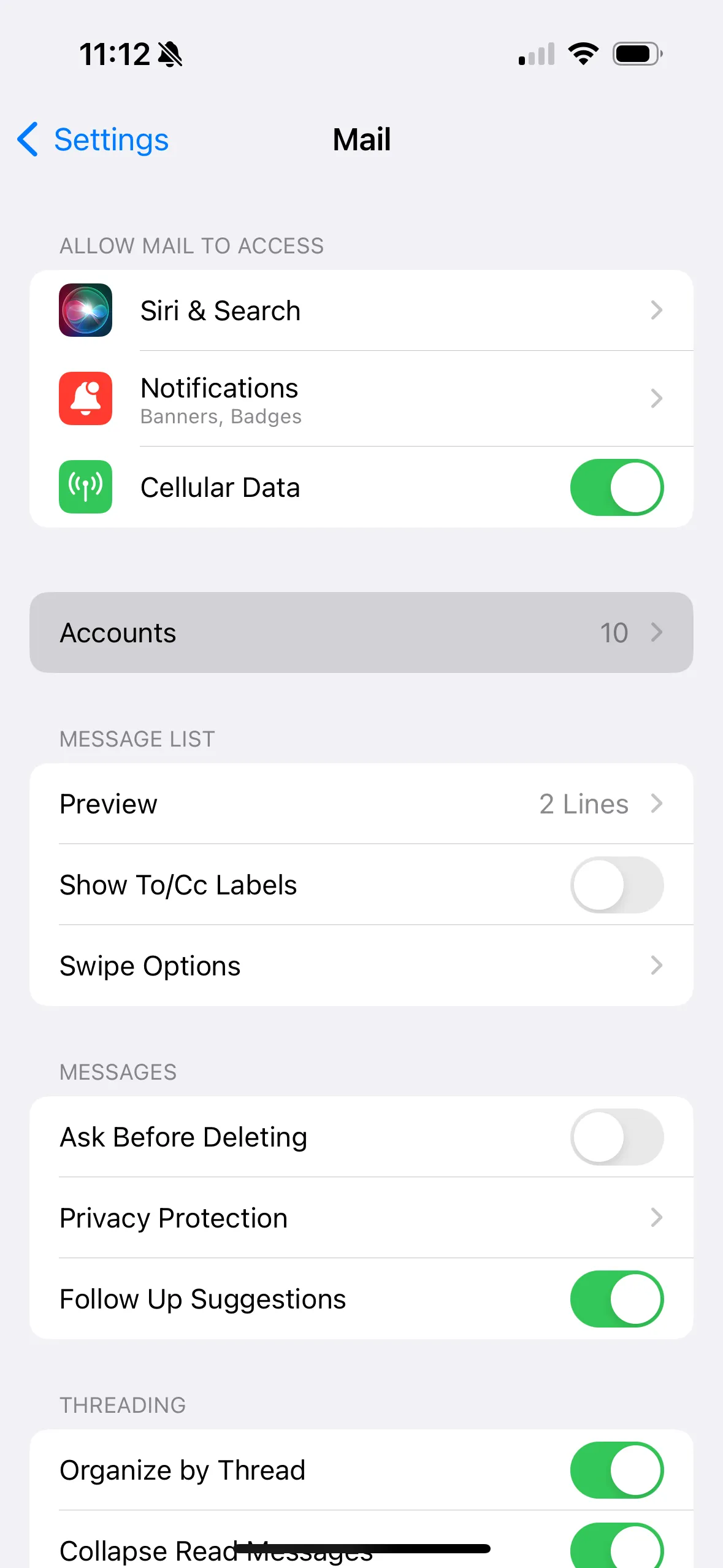
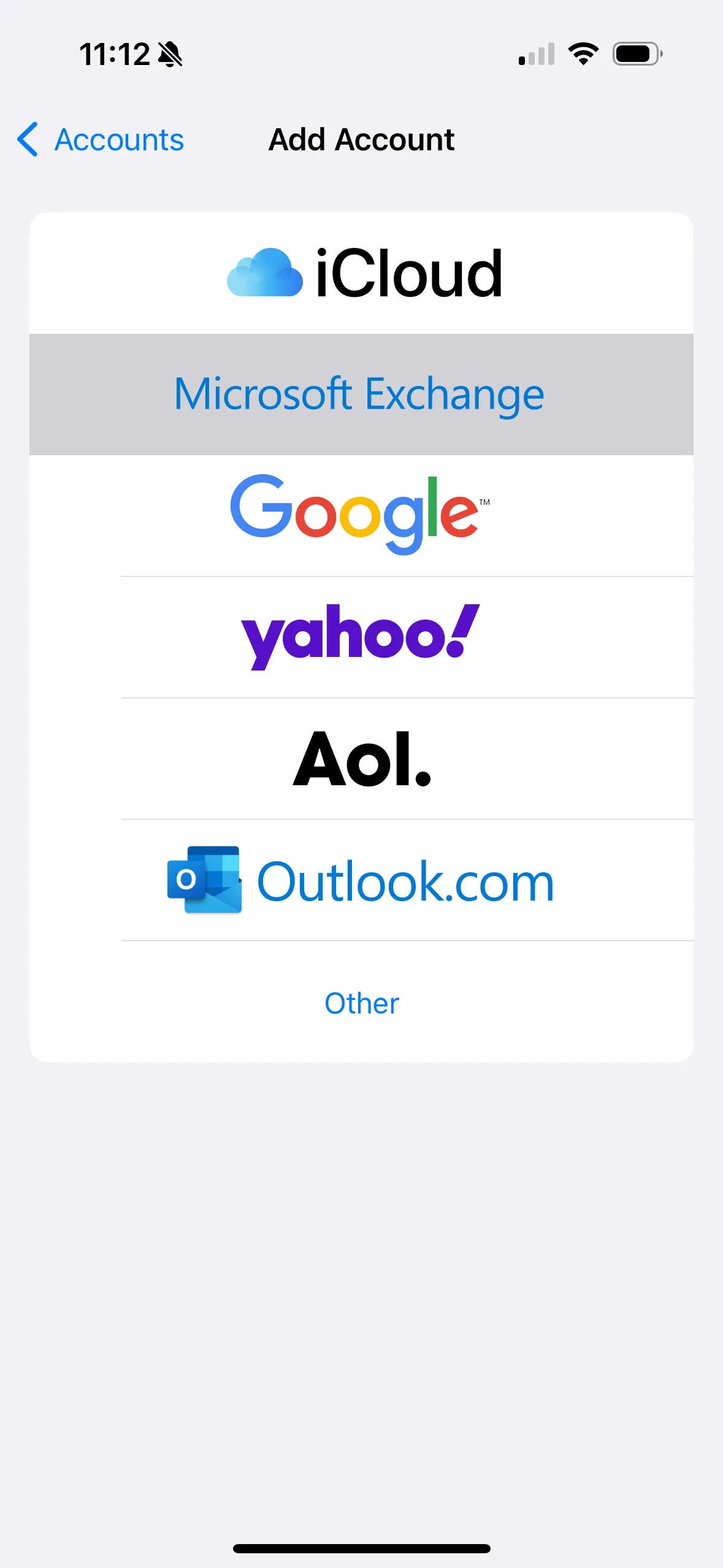
Tap Accounts, then select Microsoft Exchange.
-
In the Email field, enter your new email address (for example, yourname@yourdomain.com).
-
Enter any description you like.
-
Tap Next in the top right corner of the screen.
-
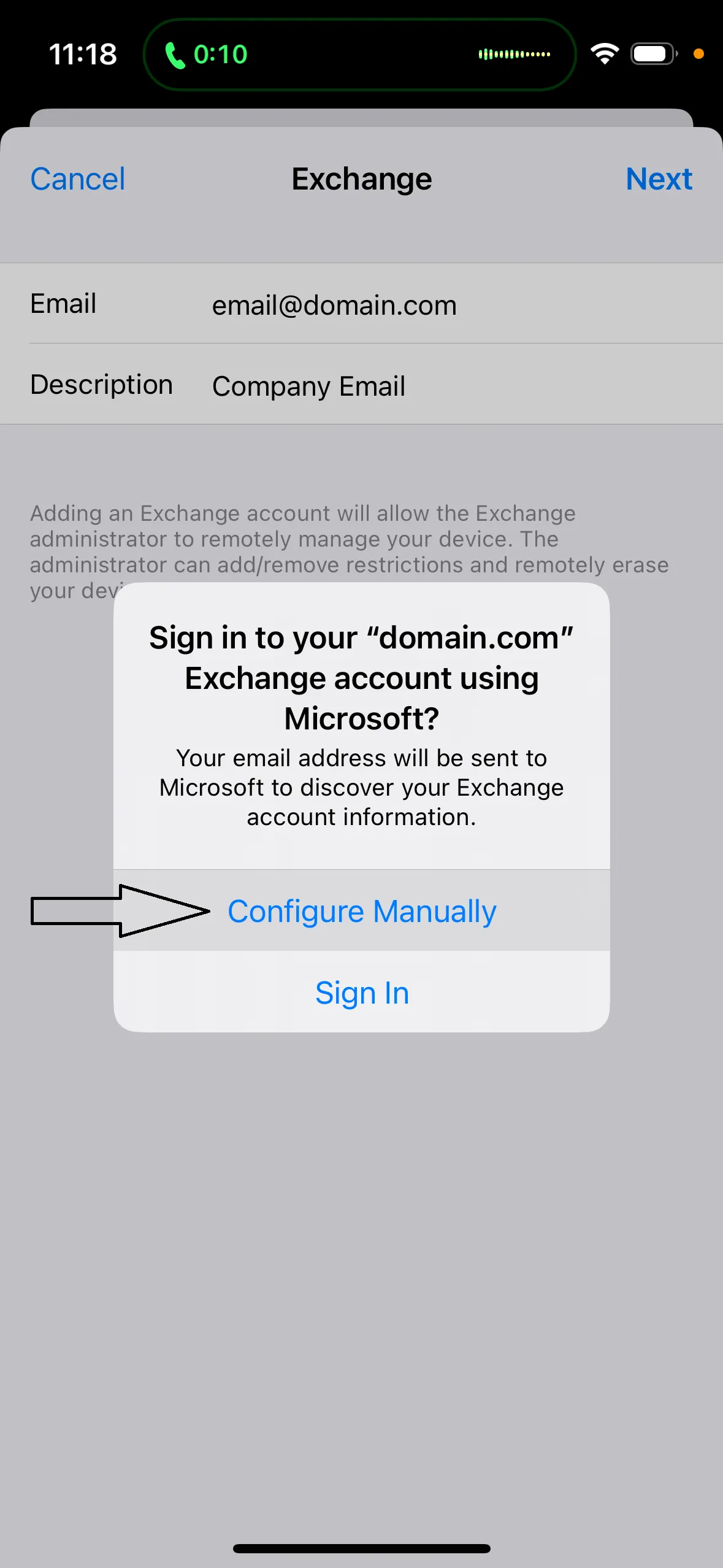
Tap Configure Manually.
-
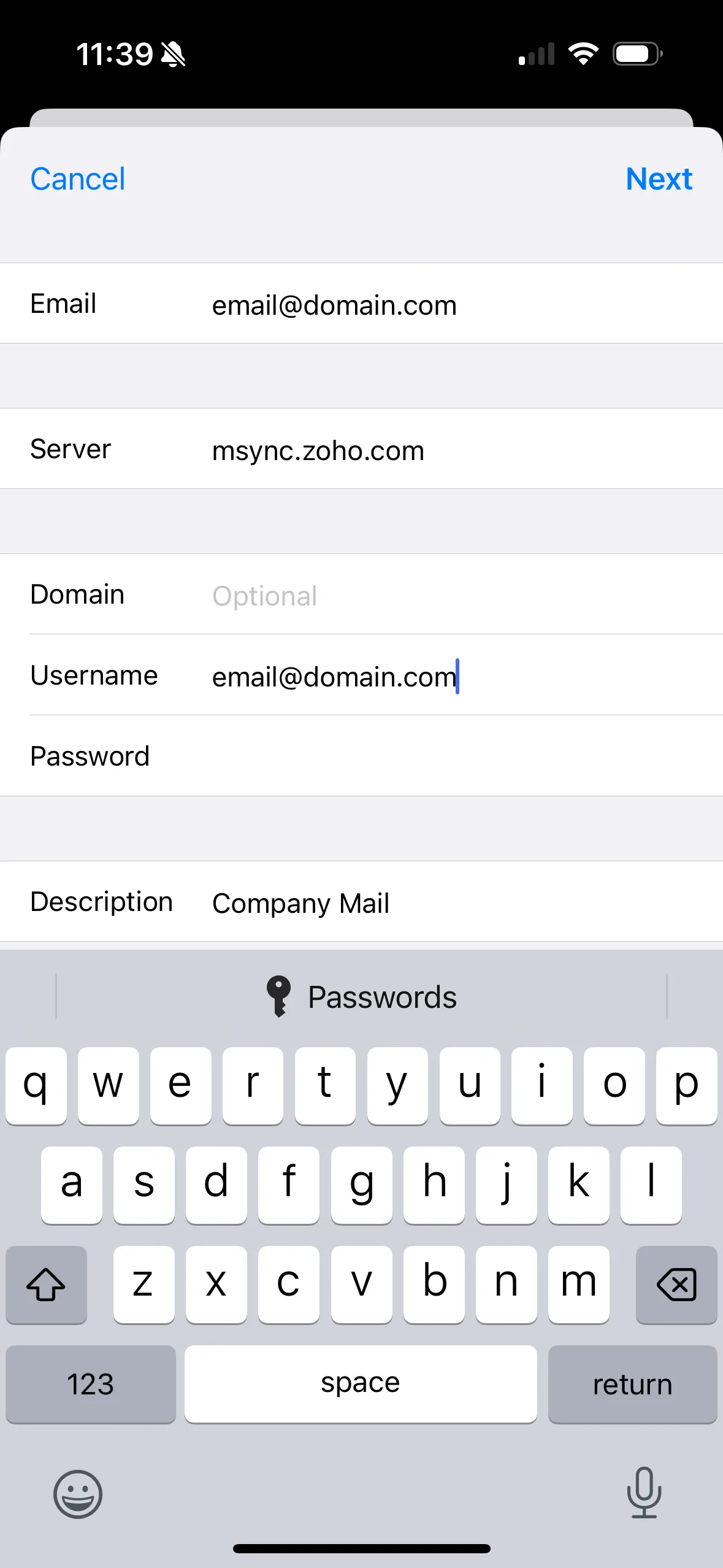
Enter your new password.
-
Tap Next in the top right corner of the screen.
-
Enter msync.zoho.com as your email server.
-
Tap Next in the top right corner of the screen.
-
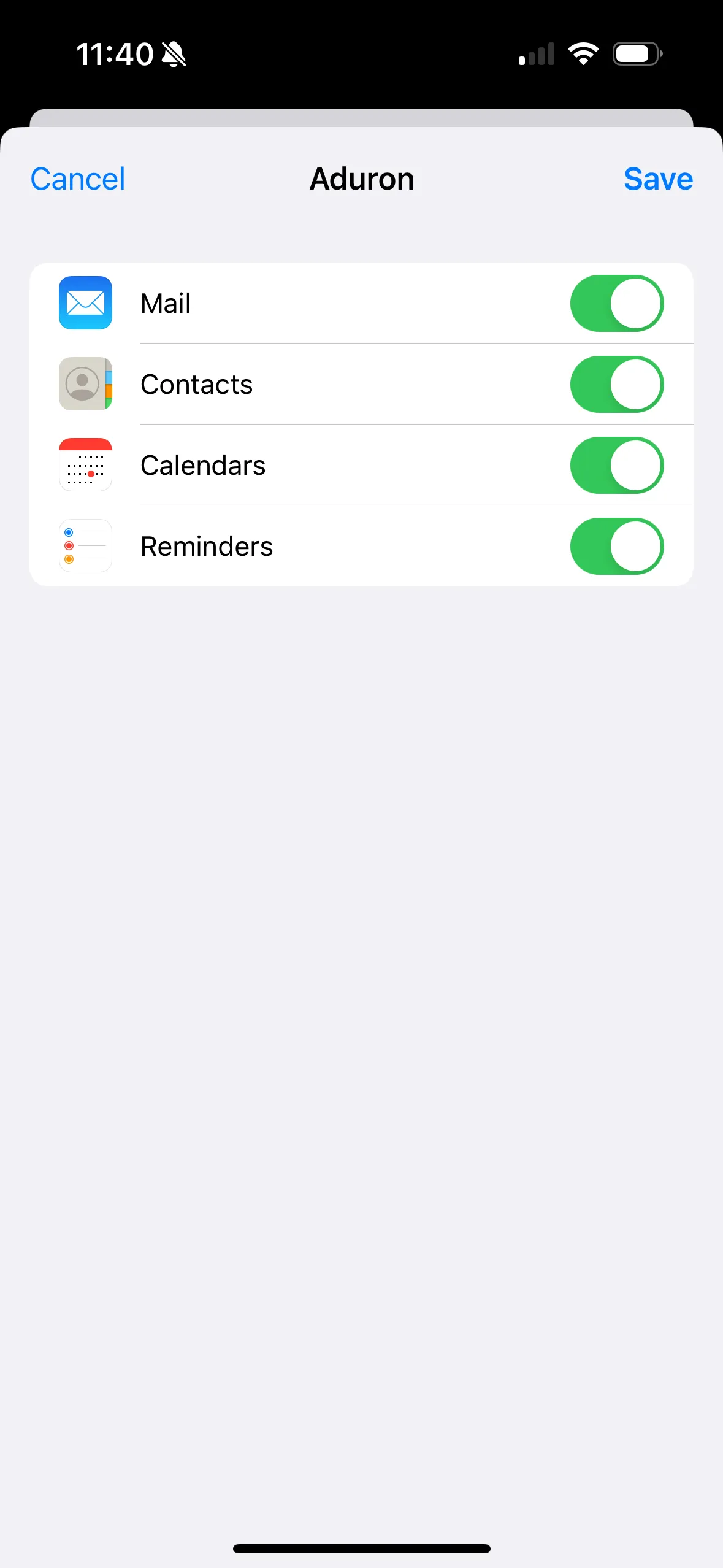
Select the items you want to sync.
-
Tap Save.