
Set up email on an Android phone
Sync your mail, contacts and calendar using Microsoft Exchange ActiveSync.
Thanks for choosing Aduron to host your new email address. Here is how to set up your Android phone to sync with our mail service. If you have not changed your password yet, please change it first. Menu names vary a little between phone makers.
-
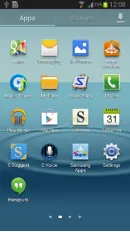
Open Settings on your phone.
-
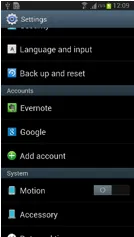
Select Add Account.
-
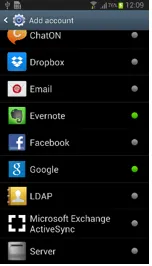
Select Microsoft Exchange ActiveSync.
-
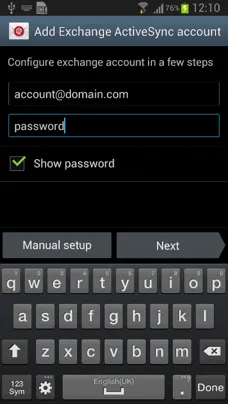
Enter the new email address that was provided to you separately.
-
Tap Next.
-
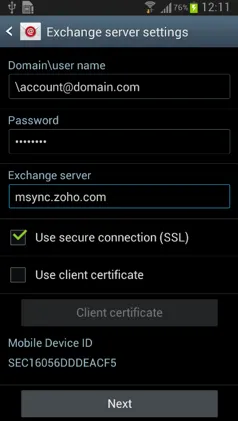
In the Domain\user name field, enter a backslash (\) followed by your new email address.
-
Enter msync.zoho.com in the Exchange server field and tap Next.
-
If your phone requires the Domain field, any value is acceptable.
-
Turn on the SSL Connection option.
-
Tap Next again.
-
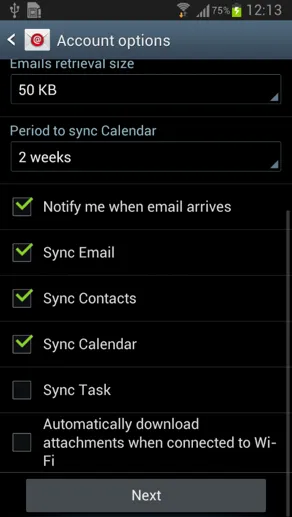
Select Mail, Contacts and Calendar to sync them.
-
Tap Next, then Done.